Methods to Install Xcode Command Line Tools
Installing Xcode Command Line Tools on macOS is a critical step for developers who want to access essential development utilities like git, build, and other Unix-based tools. Now, we’ll see and apply the proper methods to Install Xcode Command Line Tools.
Method 1: Using the macOS Terminal
Now, we need to open the terminal in our system and install efficiently the command line tools to implement them in any process. It will increase our productivity and time complexity management.
Step 1: Open the Terminal
MacOS Terminal can be found in the Utilities folder inside the Application folder. You can also search for it by using Spotlight.
Step 2: Installing the command line tools
You have to run the following command in the terminal and press enter:
xcode-select --installStep 3: Follow the Prompts
Running the command in the terminal produces the following GUI. Click on the ‘Install’ to proceed.
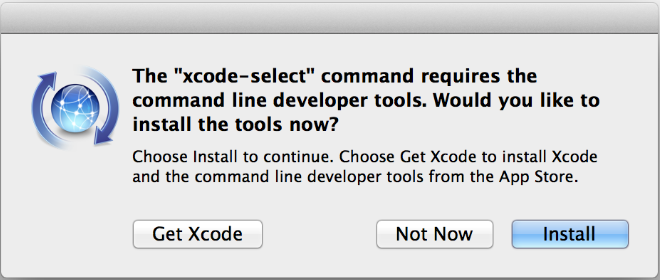
Follow the prompts to agree to the terms to complete the installation.
Method 2: Inside the Xcode app
If method 1 not working properly in your system, you can use this method 2 by opening Xcode in the internal system. After processing the generator, you need to follow all the prompt options and open the download panel to initialize the system configuration.
Step 1: Open Xcode
Open the Xcode app from the applications folder.
Step 2: Follow the Prompts
If Xcode is opened the first time, it will prompt you to download additional components and you can follow the prompts and the command line tools will be installed along with additional components. If Xcode is not opened the first time or command line tools are still not installed, then follow the next step, Step 3 otherwise skip to Step 4.
Step 3: Open the Download pane
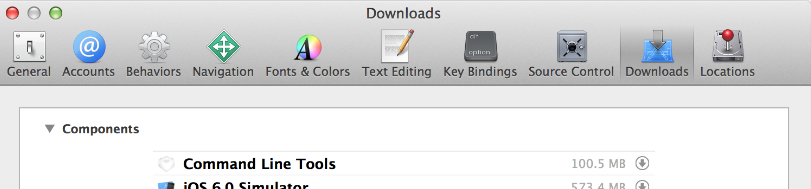
Xcode also includes a new ‘Downloads’ preference pane to install optional components such as command line tools. To open the pane click the ‘Xcode’ button in the top left of the screen near the Apple logo, then you click ‘Preferences’, then click ‘Downloads’. Install the Command line tools from the Download pane.
Method 3: Separate Download
Xcode Command Line Tools can also be downloaded separately, even if you don’t have the Xcode app.
Go to ‘developer.apple.com/downloads/index.action’, and sign in with your Apple ID. In the pane on the left, search for “command line tools” and choose the package appropriate to your version of OS X. Requires Mac OS X 10.7.3 or later.
To verify the installation of Xcode Command Line Tools, Run the following Command in the Terminal:
xcode-select -pThis command should return the path to the Command Line Tools directory, typically ‘/Library/Developer/CommandLineTools’.