Windows
Prerequisites
Check if winget is installed
Make sure you have winget installed first. To do this, issue the following command:
winget --versionThis should output: vx.x.xxxxx
If not, please install winget
Install via winget
Run the following command via Windows Command Prompt to install Python:
winget install --id Python.Python.3.12Linux
Prerequisites
Step 1: Update package repository
NOTE
Always start with this step to prevent version conflicts.
Open terminal with shortcut key Ctrl + Alt + T
sudo apt updateStep 2: Upgrade Existing Packages
NOTE
This step prevents compatibility issues by updating all installed software.
Updates are installed packages to their latest versions.
sudo apt upgradeStep 3: Install Python 3
This commands Installs the default Python 3 version for your.
sudo apt install python3MacOS
Prerequisites
- A Running MacOS Laptop.
- Access to Macbook Administrative Privileges or Password.
- HomeBrew installed
Step 1: Open the Terminal.app
Press Command + Space, type Terminal, and hit Enter.
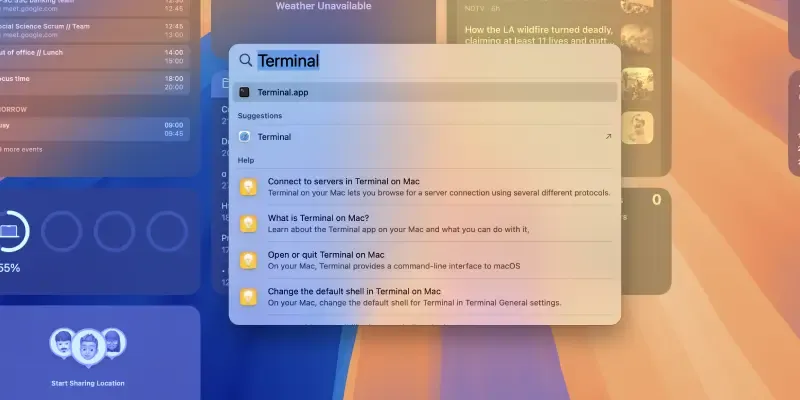
Step 2: Confirm Pre-Installed Python Version
Run the following command to check the installed Python 3 version:
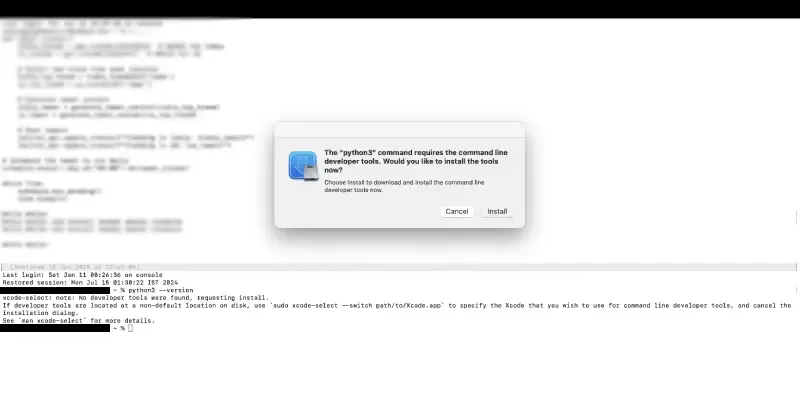
python3 --versionPopup Appears: The xcode-select command requires the command line developer tools. Would you like to install the tools now?
When installing Homebrew(or sometimes Python directly), you might encounter a popup prompting you to install Command Line Developer Tools. These tools are required for many macOS development tasks, including Python installation.
Solution: When you see a popup asking you to install “Command Line Developer Tools” > Click on Install and wait for some time to Download the software. Ensure you’re connected to a stable Wi-Fi network.
Troubleshooting Command Line Developer Tools Installation Fails Error
Manually install the tools by running
xcode-select --installStep 3: Preview Output
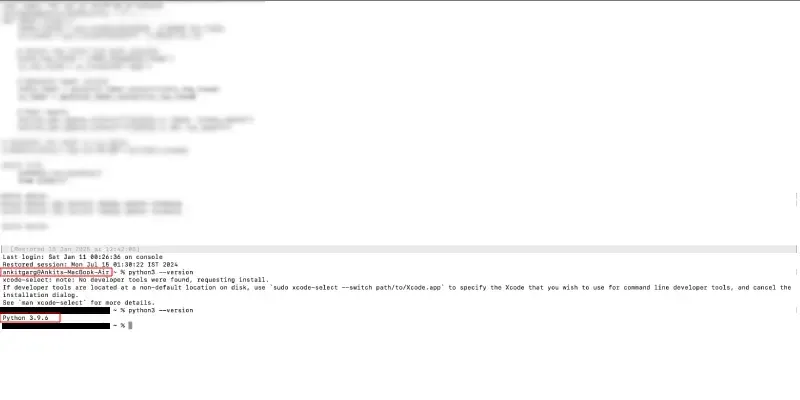
- If you see something like
Python 3.x.x(Like in the below Image it shows Python 3.9.6), this means Python 3 is already installed. Now, we will Ensure the version matches the latest installed version (e.g., Python 3.13.x) after following further steps mentioned below in this guide. - If the command returns an error or no version is shown, Python 3 is not installed.
Troubleshooting:
- Command Not Found: If
python3doesn’t work, Python 3 is not installed. Continue with the installation.- Outdated Version: If an old version of Python 3 is installed, upgrade it using Homebrew (see Step 3).
Step 4: Open terminal (if not already opened)
Press Command + Space, type Terminal, and hit Enter.
Step 5: Run the following command
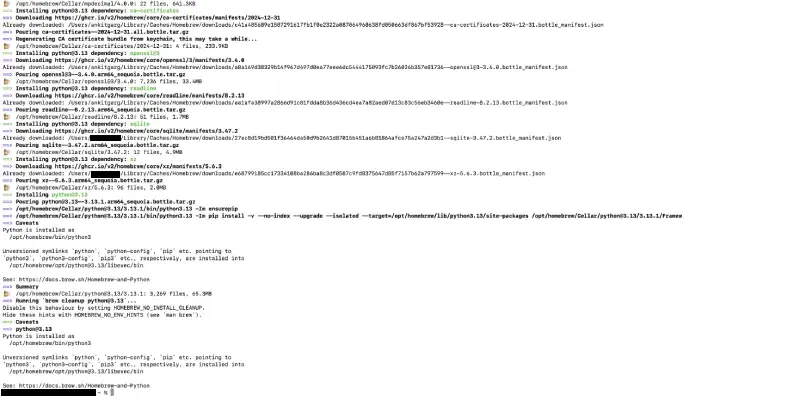
This command will download and install Python 3 latest version along with pip, the Python package manager.
brew install pythonWait for the process to complete. You may see progress indicators as Homebrew downloads and installs dependencies.
Step 6: Verify the Python installation
python3.13 --versionIf installed correctly, you’ll see the version number (e.g., Python 3.13.1).

Step 7: Verify pip installation
pip3 --versionIf pip3 is installed, it will display its version.
Common Issues and Fixes when Installing Python on MacOS
Below are the most common Issues that arises when installing Python in your Mac, all these errors and issues looks difficult but they are very easy to fix in some quick steps:
Error: Command Not Found
Now run the following command, in order to fix any issue related to Homebrew not running in your terminal.
brew doctorNow after pressing the enter, it will show issues, If issues are reported, follow the suggested fixes.
Error: Incomplete Installation
Reinstall Python by copy and paste the following command in the terminal.
brew reinstall pythonTest Your Python Installation on Macbook
Testing ensures that Python is set up correctly and ready for use.
Step 1: open terminal (if not already opened)
Press Command + Space, type Terminal, and hit Enter.
Step 2: Launch Python
python3You’ll see a >>> prompt, indicating Python is ready.
Step 4: Run a test script
print("Hello, Python!")If you see Hello, Python!, Python is working correctly.

Step 4: Exit Python
exit()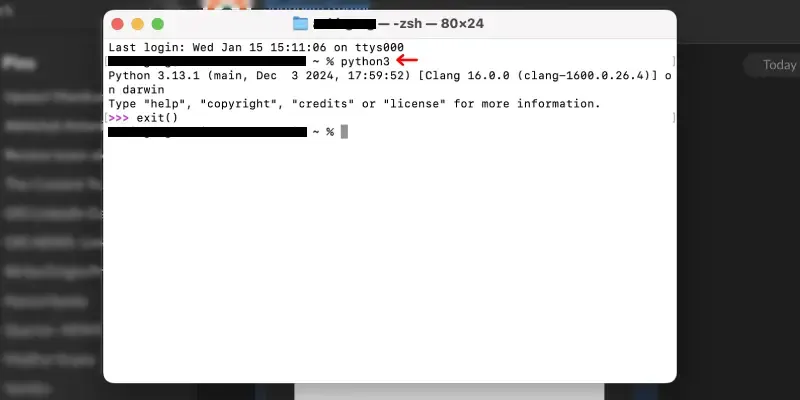
Adding Python to PATH (If Python Not Running)
If Python3 command doesn’t work after installation, you might need to add Python to your system PATH.
How to Add Python to PATH on Mac
Step 1: Open Terminal
Use the shortcut key Command + Space, type Terminal, and hit Enter.
Step 2: Edit the Shell Configuration File
For macOS Catalina or later (default shell is Zsh):
nano ~/.zshrc
For older macOS versions (default shell is Bash):
nano ~/.bash_profileStep 3: Add the Line in the File
Add the following line at the end of the file:
export PATH="/usr/local/opt/python/libexec/bin:$PATH"Step 4: Save the changes:
Press Ctrl + O, then Enter, followed by Ctrl + X.
Step 5: Reload the Configuration
Now use the below command to reload the configuration to add Python to PATH on Mac
source ~/.zshrcHow to Verify PATH Changes on Mac
Now verify the above steps tp preview the PATH Changes on Mac for Python Intsllation, If the version appears, Python 3 is successfully added to PATH.
Run the following Command
python3 --version