MacOS
Prerequisites
- A 64-bit Intel CPU or Apple Silicon CPU is recommended.
- macOS Ventura (13) or the higher version of macOS
- Command Line Tool for Xcode
- Bourne-again shell for installation
How to Install Homebrew
In this section, we have listed all the installation steps that you will need to apply to install Homebrew. So follow the steps carefully so you don’t get any errors. Also, before installing Homebrew, you need to install Xcode so that Homebrew works properly.
Steps to Install Homebrew on Mac
**Step 1:**First, open Mac Terminal.
Step 2: Use the below command to get an overview of the requirements for installation.
/bin/bash -c "$(curl -fsSL https://raw.githubusercontent.com/Homebrew/install/HEAD/install.sh)"Now if you are facing an error like this image shown below:
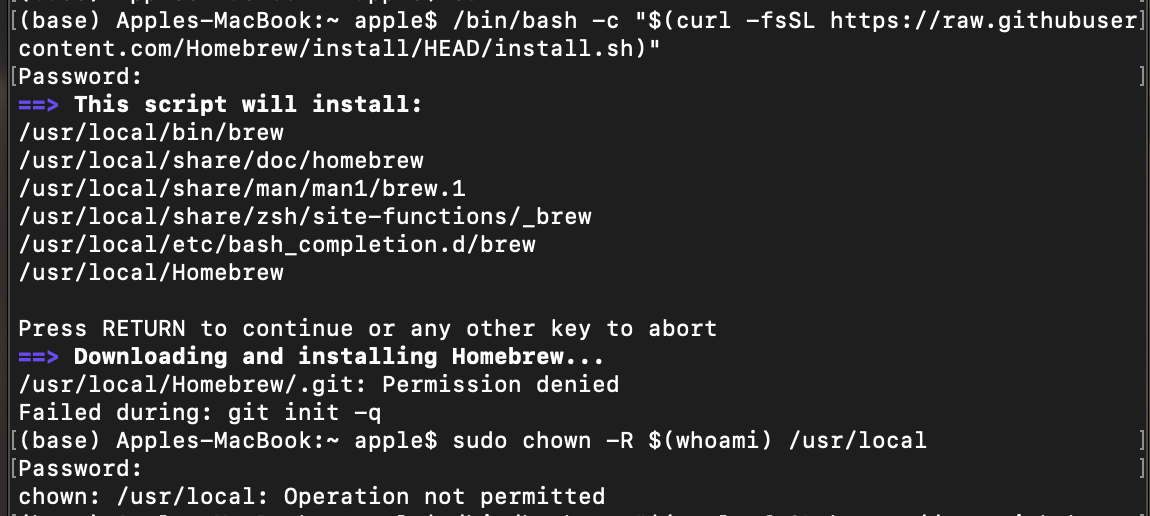
Try this Command before running Step 2
sudo chown -R $(whoami) usr/localStep 3: If no error occurs, enter your administrator password when prompted and press Return to continue. Alos wait till the download is complete.
Note: When you enter your password in the Terminal window, you won’t see the characters appear. This is a standard security feature used in command line interfaces to protect your password. Rest assured, even though you can’t see them, your keystrokes are still being captured. Just hit the RETURN key after you finish typing your password.
Step 4: Once the installation process is completed, you should see a successful installation message appear.
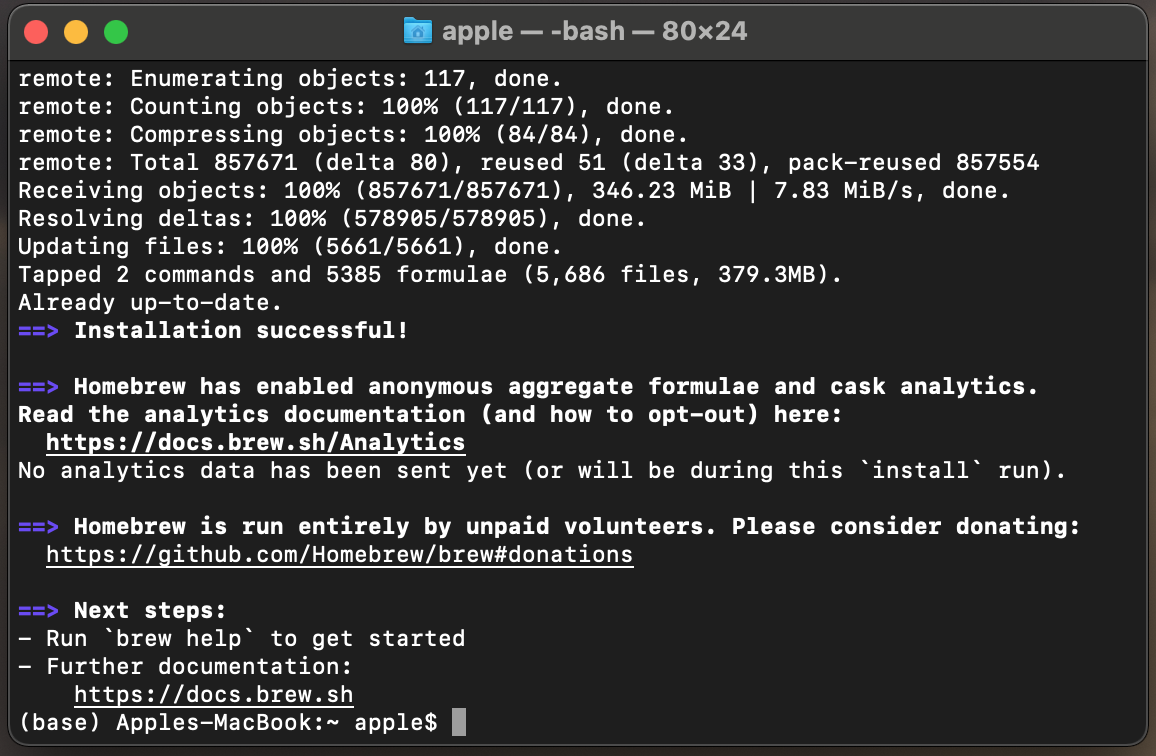
At this stage, you are all set to enjoy the services provided by Homebrew.
Verify Installation of Homebrew
You can verify the installation of Homebrew by using the below command in the terminal.
# brew doctorTurn Off Analytics
If you are using Homebrew, then you should know that Homebrew anonymously gathers usage data about the users. So if you don’t want to share your usage data, then follow the below command.
# brew analytics offHow to Uninstall Homebrew
To uninstall Homebrew from your system, follow the below steps:
Step 1: Open Terminal.
Step 2: Use the below command to uninstall Homebrew.
/bin/bash -c "$(curl -fsSL https://raw.githubusercontent.com/Homebrew/install/master/uninstall.sh)"
This downloads and runs the uninstaller script. Follow the instructions, and Homebrew will be removed from your computer.
List of Common Commands Used in Homebrew
Once you have installed Homebrew, you can start exploring its features. Below are some of the most frequently used commands that will help you get started.
Update Homebrew
New versions of Homebrew come out frequently, so make sure you update it before updating any of the other software components that you’ve installed using Homebrew.
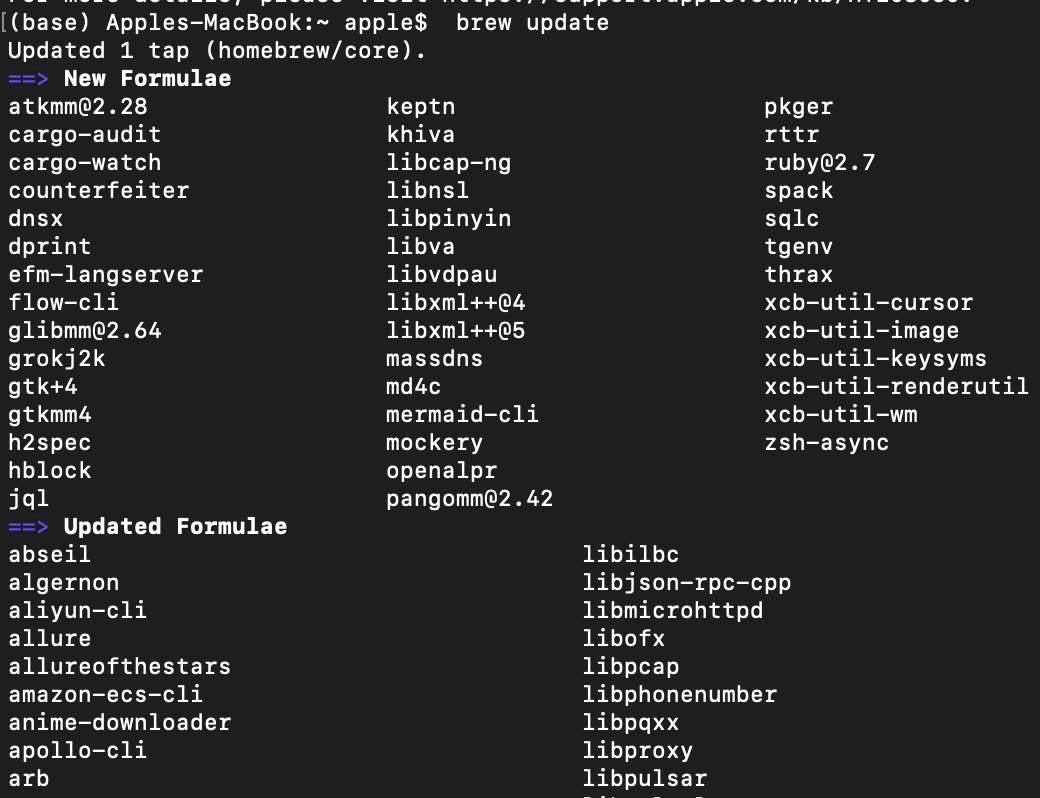
Use the below command in the terminal to update to the latest stable version of Homebrew:
# brew updateThis will result in the below output:
Install a package
# brew install <package>Note: Replace the package for the command with the name of the software that you want to install.
Check for issues
# brew doctorThis command diagnoses any issues with the Homebrew setup.